Grocery List can show your shopping list on the iPhone Lock Screen as a Live Activity, so you can check items off in the store without unlocking your phone. It's off by default. To turn it on, open Settings in the app and switch on Show on Lock Screen in the Live Activity section. It's free.
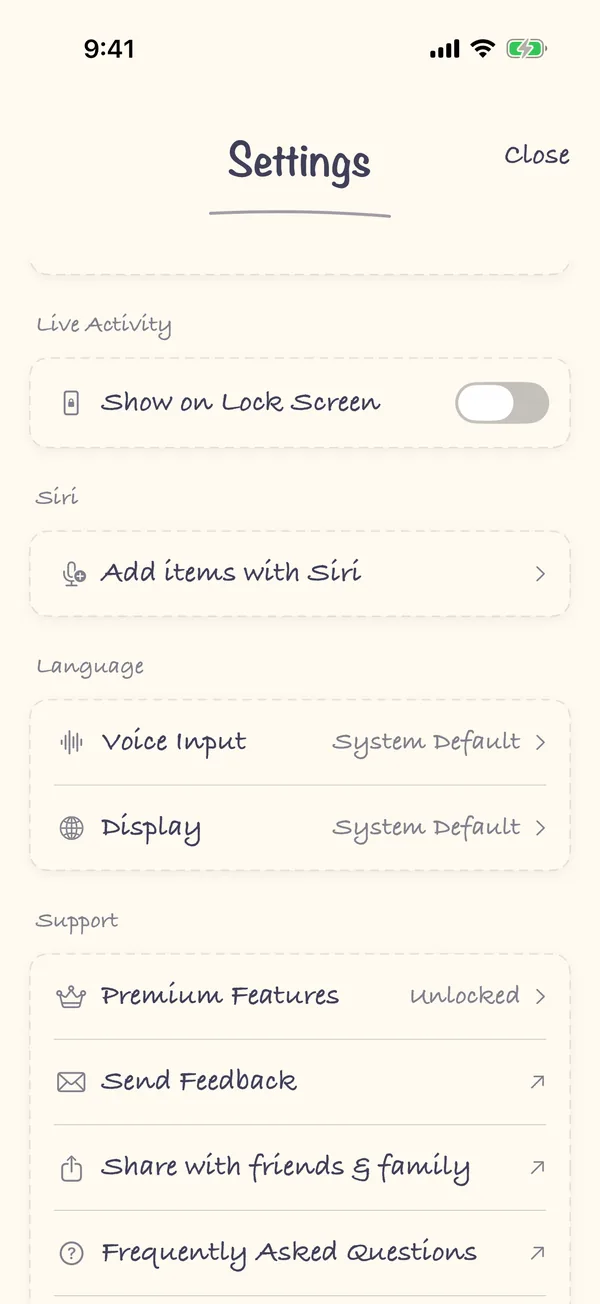
1. Open Settings
Tap the gear in the top-right corner of your list.
2. Turn on Show on Lock Screen
Scroll to Live Activity and switch on Show on Lock Screen. If your list has items left to buy, the Live Activity starts straight away.
3. Shop from the Lock Screen
Lock your iPhone. Your list shows the next few items still to buy. Tap one to check it off: it's crossed out and then disappears. On iPhones with the Dynamic Island, a cart and a count of what's left sit at the top of the screen. Touch and hold it to see items and check them off from there.
FAQ
Why isn't my list on the Lock Screen?
The setting is off until you turn it on: Settings → Live Activity → Show on Lock Screen. It also needs at least one item that isn't checked off yet. If it's on and still doesn't appear, check that Live Activities are allowed for Grocery List in the iPhone's Settings app.
How many items does it show?
Up to five items still to buy, followed by "+N more" if there are more. When you check one off, the next one moves up.
When does it go away?
When everything on the list is checked off, or when you turn Show on Lock Screen off.
Is it free?
Yes. The Lock Screen list isn't part of Premium.