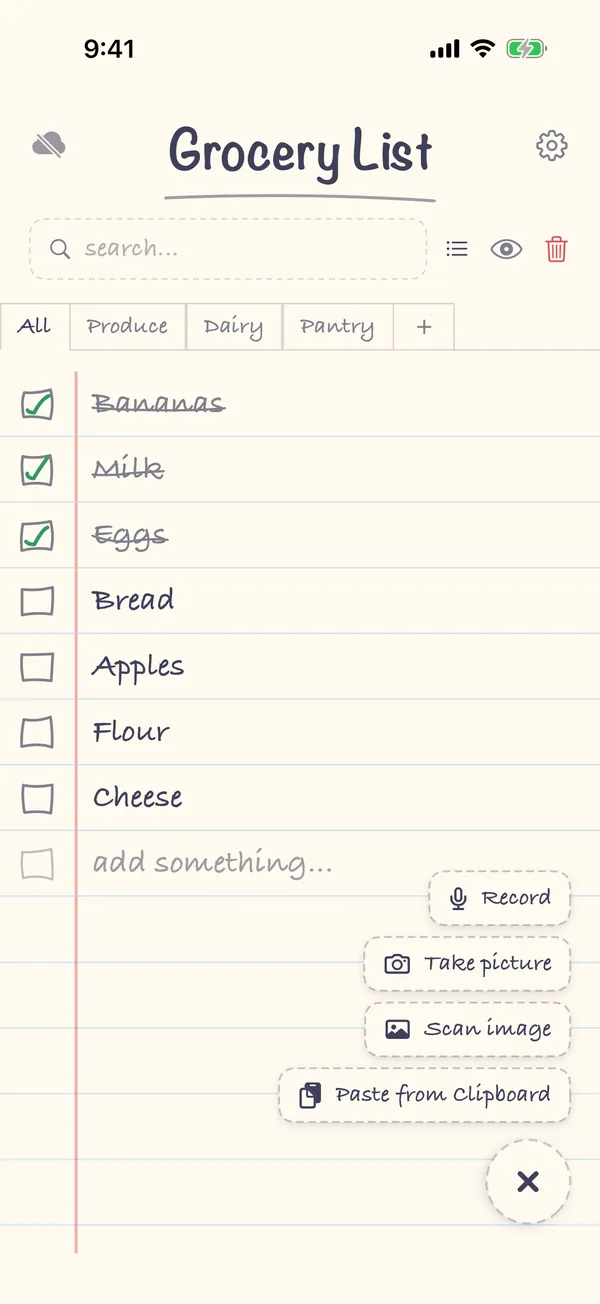
Grocery List can turn a photo of a list into list items. Tap +, then Take picture to use the camera or Scan image to pick a photo you already have. Crop it to the list, and the app reads the text on your iPhone and shows each line for you to check before it's added. It works with handwritten lists, notes and printed recipe pages, and it's free.
1. Tap + and choose a photo
Tap the + button at the bottom right. Choose Take picture to photograph the list now, or Scan image to choose a photo from your library.
2. Crop to the list
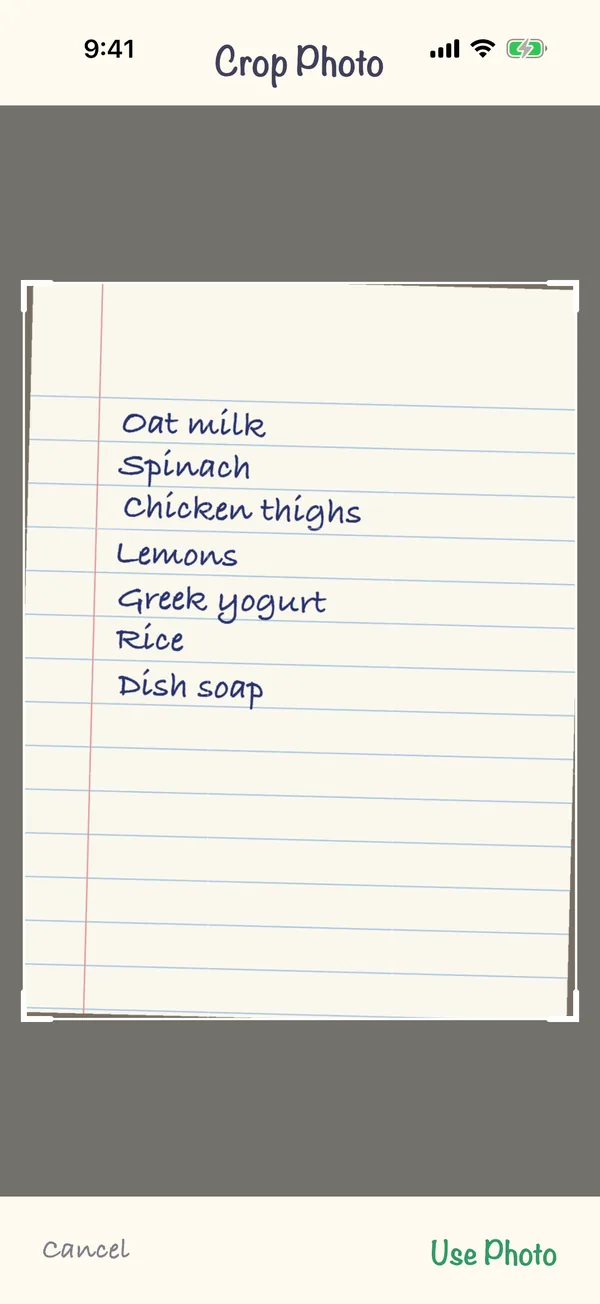
On the Crop Photo screen, drag the corners so only the list is inside, then tap Use Photo.
3. Check the items
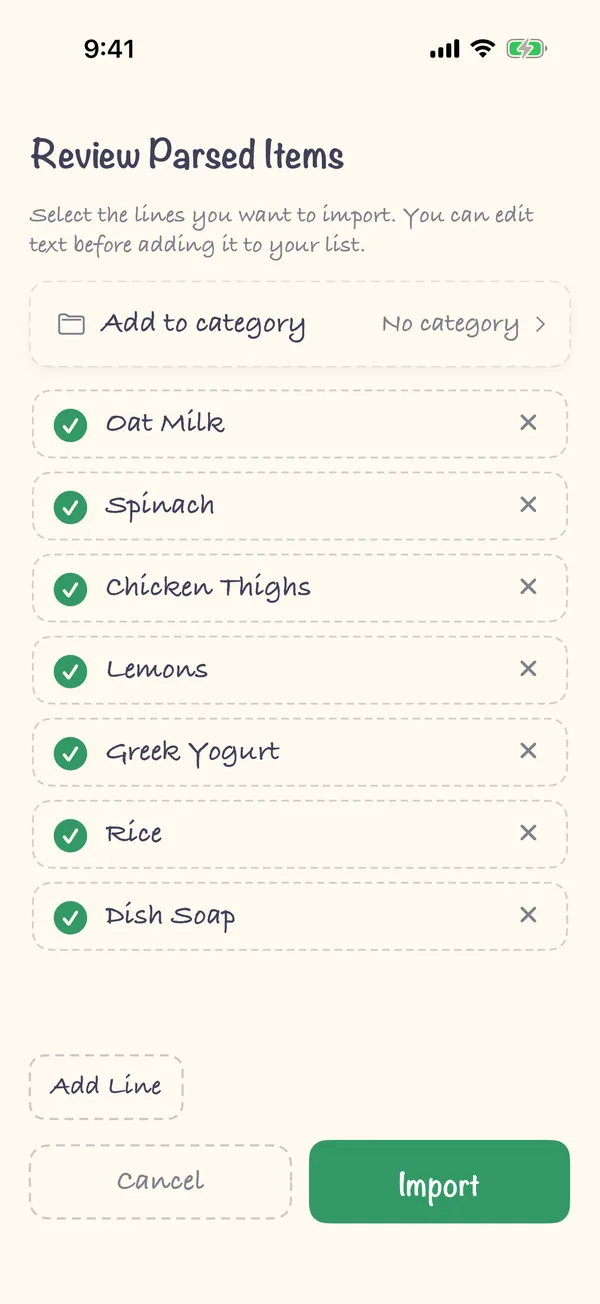
Review Parsed Items shows one line for each line of the list. Edit anything the app misread, remove what you don't need, or add a line. Then tap Import.
FAQ
Does it read handwriting?
Yes, though clear handwriting works best. Write one item per line, and check the review screen for anything misread before you tap Import.
Is it free?
Yes. Taking a picture or scanning an image is free. Sharing a screenshot to the app from Photos is free too.
Can I scan a recipe from a cookbook?
Yes. Photograph the ingredients list and crop to it. Bullets, numbers and checkboxes at the start of each line are removed.
Is the photo uploaded anywhere?
The text is read on your iPhone with Apple's built-in text recognition. Grocery List doesn't send the photo to a server of its own.
Nothing happened after I tapped Use Photo. Why?
The app didn't find any text in the photo. Try again closer to the list, with more light, and crop so only the list is in the frame.