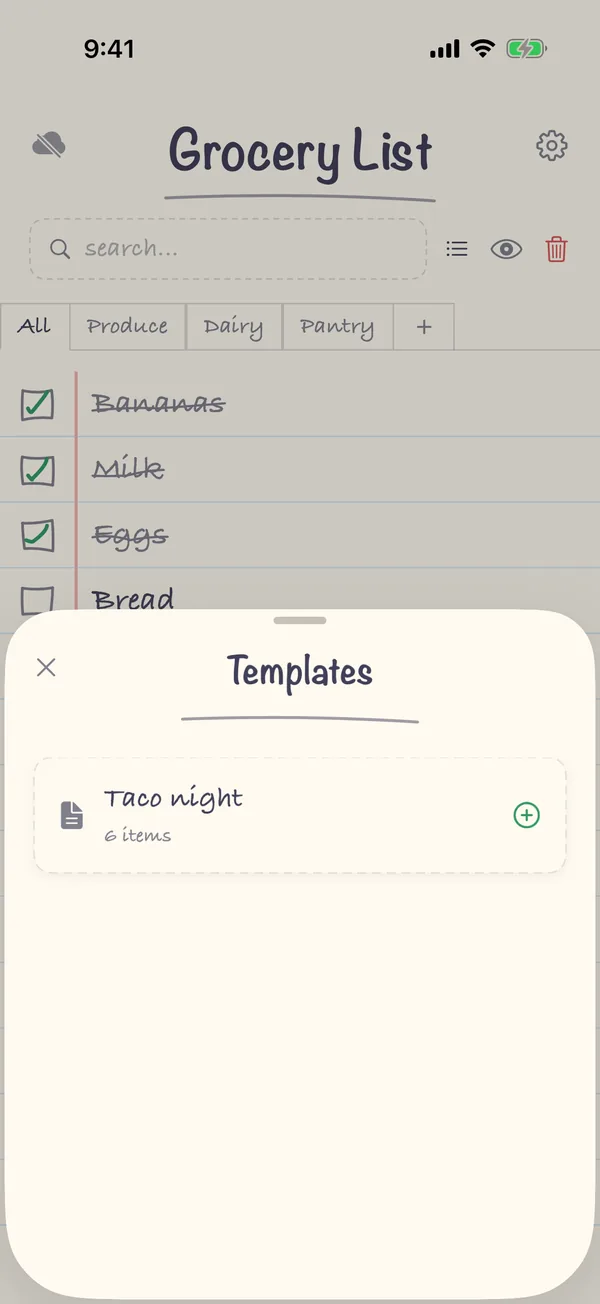
A template in Grocery List is a saved set of items, such as your weekly basics or everything for taco night, that you can add to your list all at once: tap +, then Template, then the template. You create templates in Settings → Manage Templates, one item per line. Templates are part of Premium, a one-time purchase (one payment, no subscription).
1. Open Manage Templates
Tap the gear in the top-right corner to open Settings, then tap Manage Templates in the Data section.
2. Create the template
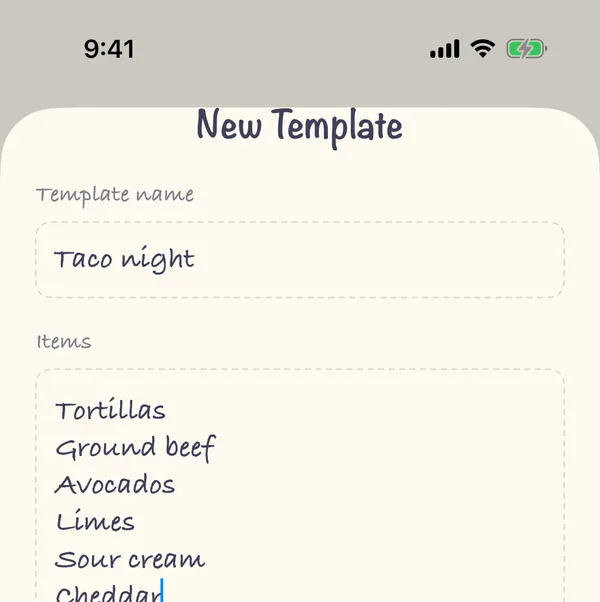
Tap Add new template. Give it a name, such as "Weekly basics" or "Taco night", and type the items one per line. Tap Create.
3. Add it to your list
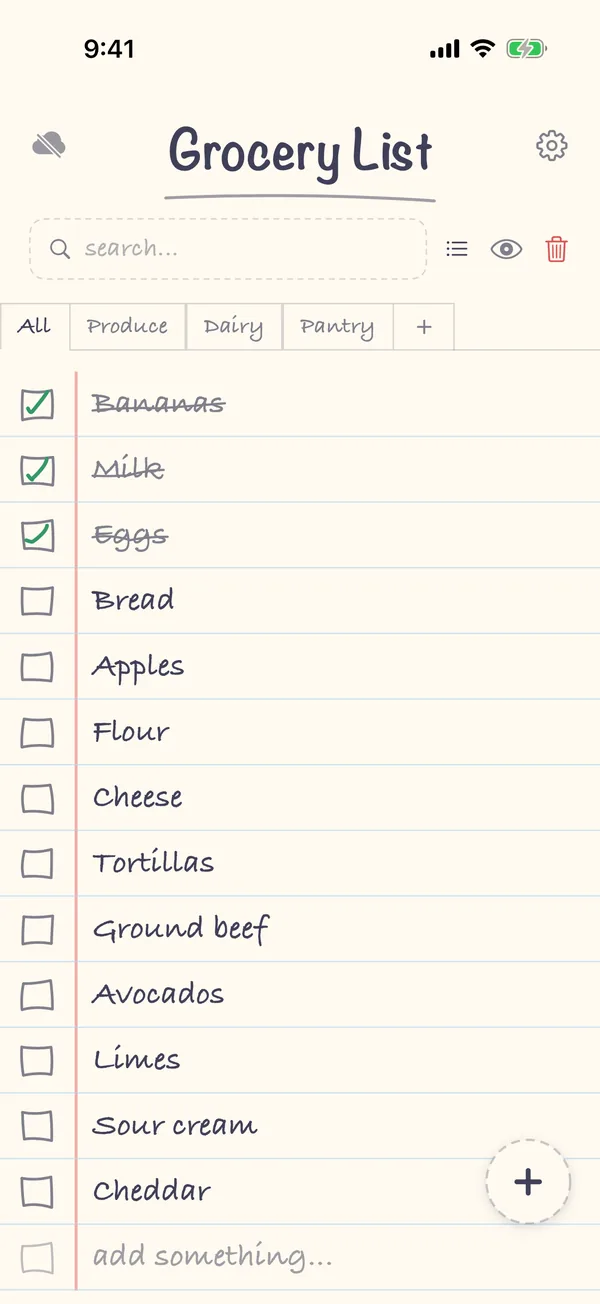
Back on your list, tap +, then Template, and tap the template. All of its items go on your list, in the category you have selected.
FAQ
Can I save my current list as a template?
Not directly. Create a template in Manage Templates and type, or paste, the items you buy every time.
Can I change a template later?
Yes. In Settings → Manage Templates, tap the pencil next to a template to edit it, or the bin to delete it. Deleting a template doesn't remove items you already added from it.
Where's the Template button?
Template is the first option in the + menu once you have Premium. Without Premium it isn't shown. Premium belongs to the Apple ID that bought it, so it works on every device you sign in with that Apple ID.